
When your Gmail tells you that you are running out of space, your first instinct might be to start deleting thousands of old emails. You might spend an hour clicking through old newsletters or bank statements from years ago. However, deleting plain text emails is often a waste of time if you are trying to save your storage. The real reason your inbox is full is likely hiding in a few dozen emails that have large files attached to them.
Why One Big File is Worse Than a Thousand Emails
Not all emails are created equal when it comes to storage space. A standard email that only contains text is incredibly small. You could have thousands of these messages and they would barely make a dent in your 15GB limit. The real space hogs are attachments.
Think about an email that contains a short video clip from a family party or a high resolution PDF for a work project. One single video file can take up more space than five thousand regular text emails combined. If you have twenty or thirty of these large files sitting in your “Sent” folder or your “Inbox” from three years ago, they are acting like heavy weights sitting in your storage. Finding and removing just a handful of these big files is much more effective than deleting every single text message you have ever received. It is the fastest way to get back your space without losing your actual conversation history.
Quickly Deciding What to Keep and What to Trash
Once you have your list of large emails, you need to go through them to see what is actually important. Often, these large files are things you have already saved elsewhere. Maybe it is a video you already uploaded to social media or a work presentation that is now out of date.
The best way to do this is to look at the date and the sender. If you see a massive file from five years ago that was just a draft of a project, you probably do not need it anymore. If you see a large photo that someone sent you, you can download it to your computer and then delete the email to save your Gmail space. By focusing only on these large items, you only have to make twenty or thirty decisions instead of thousands. It makes the process of cleaning your inbox feel much less overwhelming.
Mass Deletion with a Single Keyboard Stroke
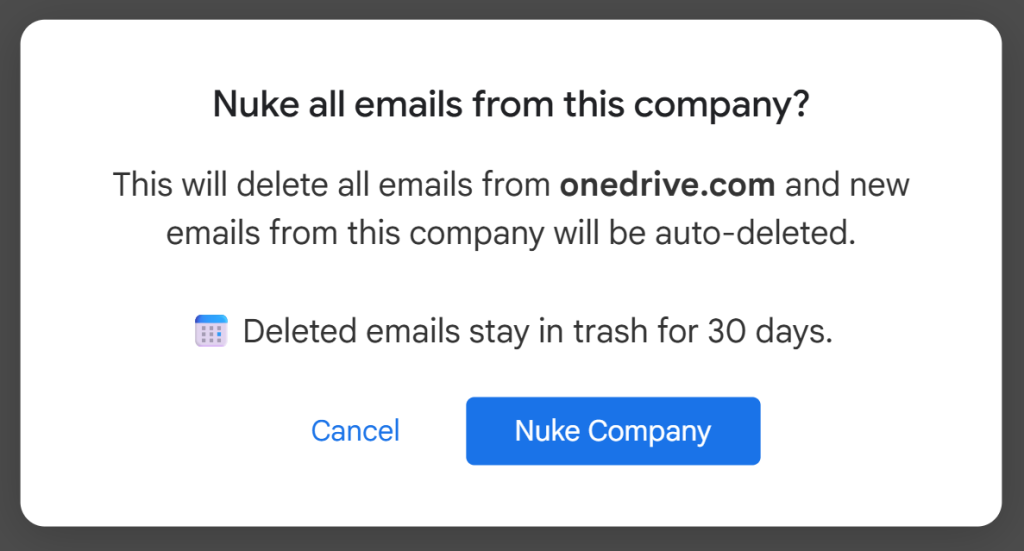
Even when you have a list of large files, the actual act of deleting them in regular Gmail can be slow. Usually, you have to click a tiny checkbox for every single email, move your mouse up to the trash icon, and then click again. If you have a hundred large files to get rid of, that is a lot of clicking and dragging that wears out your hand.
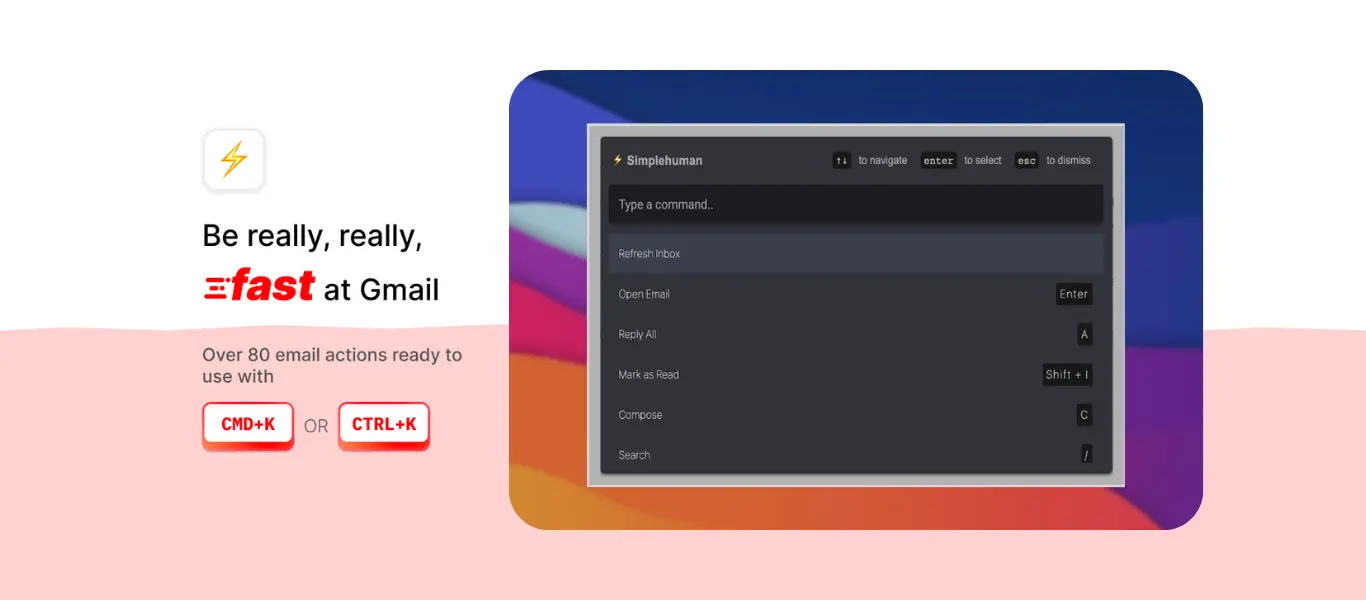
CMDK makes this incredibly fast by allowing you to use standard keyboard commands that Gmail usually does not support for bulk actions. Once you have used the Command Bar to find your large files, you can simply hit Cmd+A on a Mac or Ctrl+A on a Windows computer. This instantly selects every single large email on the screen. Once they are all highlighted, you just hit the delete key. In two seconds, you have removed dozens of massive files that were clogging up your storage. It turns a boring chore into a fast and satisfying task that you can finish before your coffee gets cold.
Starting Fresh Without Losing Your History
The best part about focusing on large attachments is that you can fix your storage problem without actually losing your messages. Many people are afraid to delete emails because they might need to look up a conversation or a piece of information later.
By only deleting the big files, you keep the text of the emails. You still have the history, the dates, and the names of the people you talked to. You are simply removing the heavy junk that was attached to those notes. This allows you to clear the red warning bar and get your Gmail working again while keeping your digital memories safe. Once those big files are gone, your 15GB of space will suddenly feel much larger. You can go back to sending and receiving mail without the constant worry of your inbox being full.