
Most people spend their work day with one hand glued to their computer mouse. When you use Gmail, you likely spend a lot of time moving that little arrow across the screen. You click a message to open it. You move your hand to find the reply button. You move it again to find the send button. Then you hunt for the archive icon to get the email out of your sight. This might seem like the normal way to work, but it is actually slowing you down more than you realize.
How to Unlock the Power of Your Keyboard in Gmail
Before you can start moving faster, you have to make sure Gmail is ready to listen to your keyboard. By default, many of these settings are actually turned off. To fix this, you need to click the gear icon in the top right corner of your Gmail and select “See all settings.” Scroll down until you see the “Keyboard shortcuts” section and click the button to turn them on. Make sure you hit the “Save Changes” button at the bottom of the page.
Once this is done, you can use basic keys like E to archive or R to reply. However, you will quickly notice that the standard Gmail shortcuts are quite limited. They only cover a few basic moves, and they can be hard to remember because there is nothing on the screen to help you if you forget. While it is a good start, it is only a small piece of what is actually possible.
Moving Beyond the Basics with CMDK
This is where CMDK takes your productivity to a completely different level. While Gmail only gives you a handful of options, CMDK adds over 100 advanced shortcuts to your inbox. It fills in all the gaps that Google left behind.
For example, you can use a single key to snooze an email, RSVP to a calendar invite, or even “Nuke” a sender to delete all their messages at once. You do not have to hunt through deep menus to find these actions anymore. CMDK turns your entire keyboard into a control panel for your mail. It allows you to handle complex tasks with just one or two taps, making your workflow feel smooth and uninterrupted.
Learning Without Any Added Stress
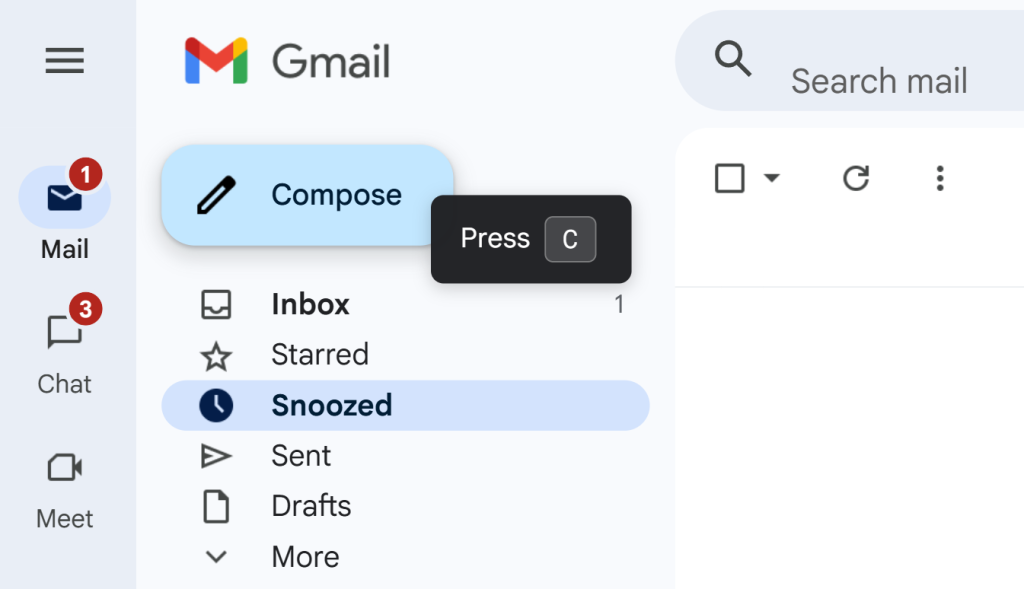
One reason people are afraid to try keyboard shortcuts is that they think it will be too hard to remember everything. They worry they will get frustrated and go back to their old ways of clicking. CMDK solves this problem with a clever feature called Nudges.
Nudges are like a friendly coach that helps you form a habit without any effort. If you forget a shortcut and reach for your mouse to click a button, a small, quiet note will pop up on your screen. It gently shows you the keyboard shortcut you could have used instead. It does not stop your work or get in the way. It just gives you a helpful reminder right at the moment you need it. Because of these nudges, you do not have to study a list or take a class. You just go about your day, and you naturally start to remember the keys. It is a completely stress free way to become a faster worker.
The Magic of the CMDK Command Bar
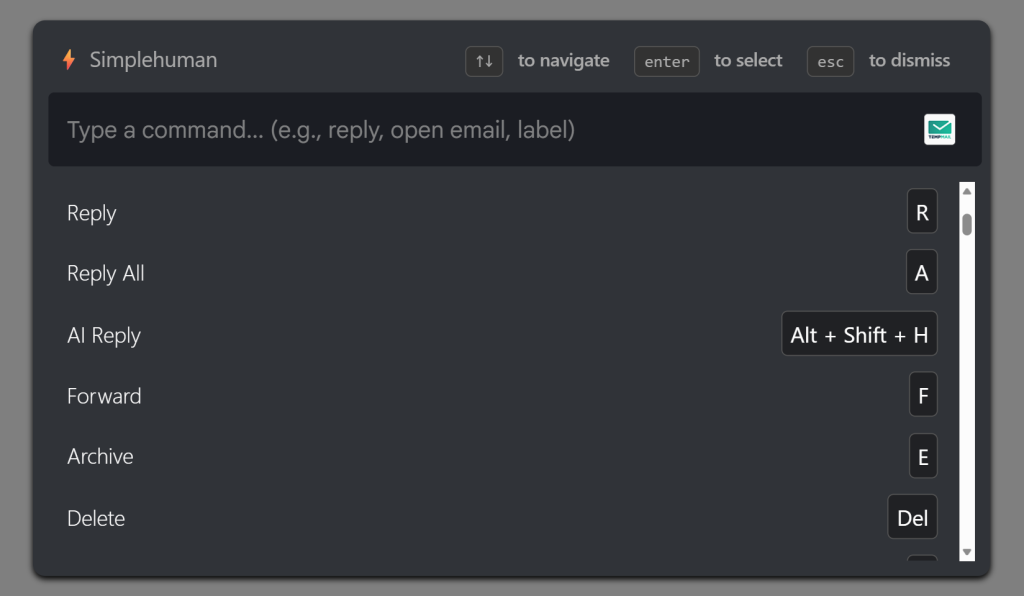
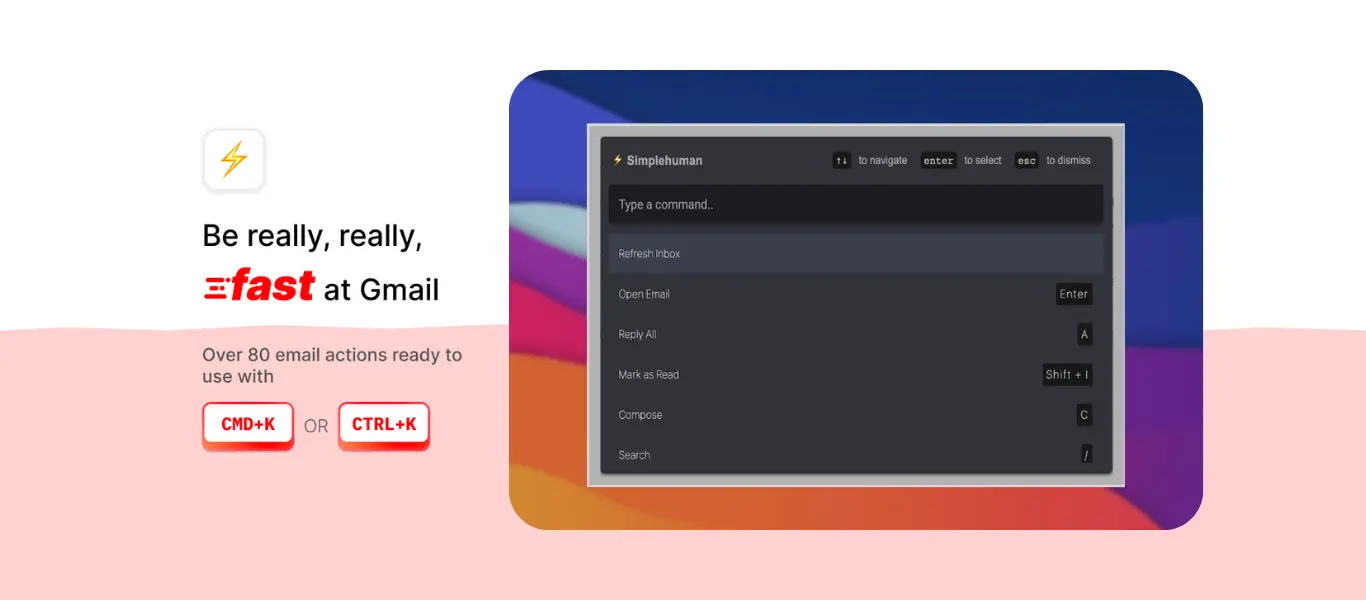
Even with 100 shortcuts, sometimes you want to do something very specific without memorizing a new key. This is where the Command Bar comes in. You can open it instantly by hitting a quick shortcut on your keyboard, and a clean search box appears right in the middle of your screen.
Instead of looking for a button, you just type what you want to do in plain English. If you type “Settings,” it takes you there. If you type “Drafts,” you are there in a blink. It acts like a brain for your inbox. You just tell it where you want to go or what you want to do, and it handles the navigation for you. This keeps your hands in one place and your mind on your messages.
The 10 Minute Morning Challenge
If you want to see the difference for yourself, try a simple experiment. Tomorrow morning, commit to using only your keyboard for just ten minutes. Use your new shortcuts to move up and down your list of emails and process them.
At first, it might feel a little bit strange because your hand will want to reach for the mouse. But with the CMDK Nudges helping you and the Command Bar acting as your safety net, you will notice something amazing by the end of the ten minutes. Your inbox feels lighter. You are moving through messages twice as fast as you used to. Once you experience that speed, you will never want to go back to the old, slow way of clicking.